Getting started
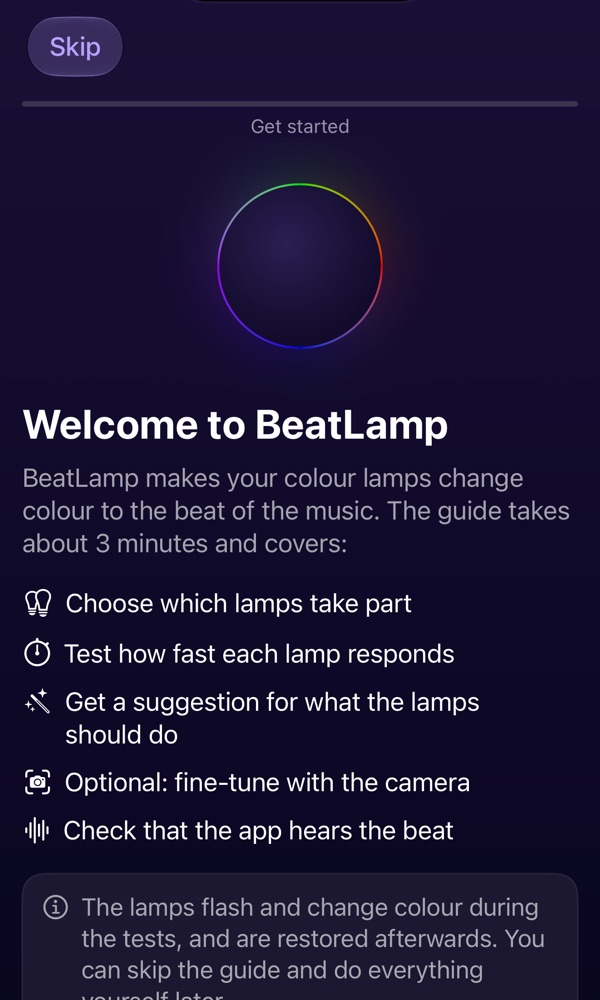
The first time you open BeatLamp, a short guide picks the lamps, tests how fast each one answers and checks that the app hears the music. It takes about three minutes, and you can run it again from Settings, Getting started.
A lamp does not change colour
Check that the lamp can be controlled in the Home app and that it is a colour lamp. In BeatLamp, open Lamps and make sure the lamp is switched on for the party.
Lamps that answer slowly roll between colours instead of changing on the beat. That is on purpose; BeatLamp tries them again when they answer evenly.
The lamps are not in time
Put the iPhone where it hears the music well, not right next to a speaker. Open Settings in BeatLamp and run the camera check, or calibrate while the music plays for the most exact timing.
BeatLamp does not know the song
For Sonos, allow BeatLamp to find devices on your local network (Settings, Privacy & Security, Local Network). For the Music app, allow access to Media & Apple Music. Otherwise Shazam listens for the song by itself.
My lamps did not get their colour back
Open BeatLamp again: it puts back any lamp that missed it. Lamps that were unreachable at the end of the party are restored when they answer again.
Purchases
To get Pro back on a new iPhone, tap Restore purchases in BeatLamp's settings. Subscriptions are managed in Settings, your name, Subscriptions.
Flashing light
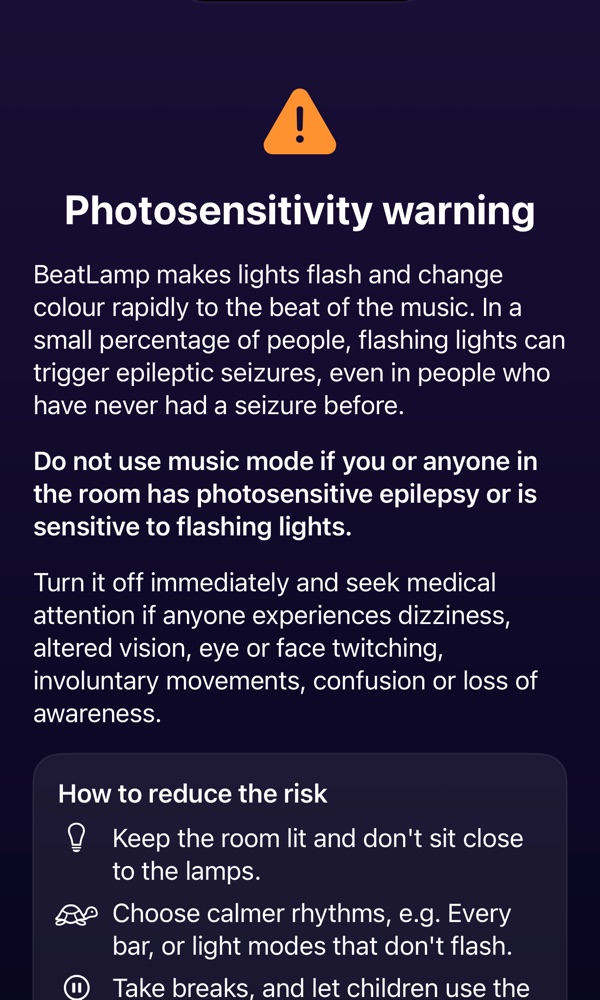
Each lamp changes at most three times a second, and at most once a second when Dim Flashing Lights is on (Settings, Accessibility, Motion). Do not use the music mode if someone in the room has photosensitive epilepsy.
Contact
Valueroom Sweden AB
Sweden
support@beatlamp.com